 Snap
SnapSnapPolish AI
Add a gradient background to an image
Give an existing image space to breathe without stretching it or replacing its contents.
SnapPolish puts your image on a larger canvas. The gradient appears around the image, while padding controls how much of the background you see. This is useful for product cards, app images, project announcements and visual notes.
A simple starting recipe
- Open the editor and upload a PNG, JPG or WebP.
- Choose 1:1 for a square composition.
- Select Aurora for a purple and pink background, or Midnight for a quieter dark frame.
- Start with 15% padding. Increase it for a smaller image and more background; decrease it to make the image more prominent.
- Set corner radius to 22 for a rounded frame, or 0 for square corners.
- Choose Standard 1× and export PNG.
What the result looks like
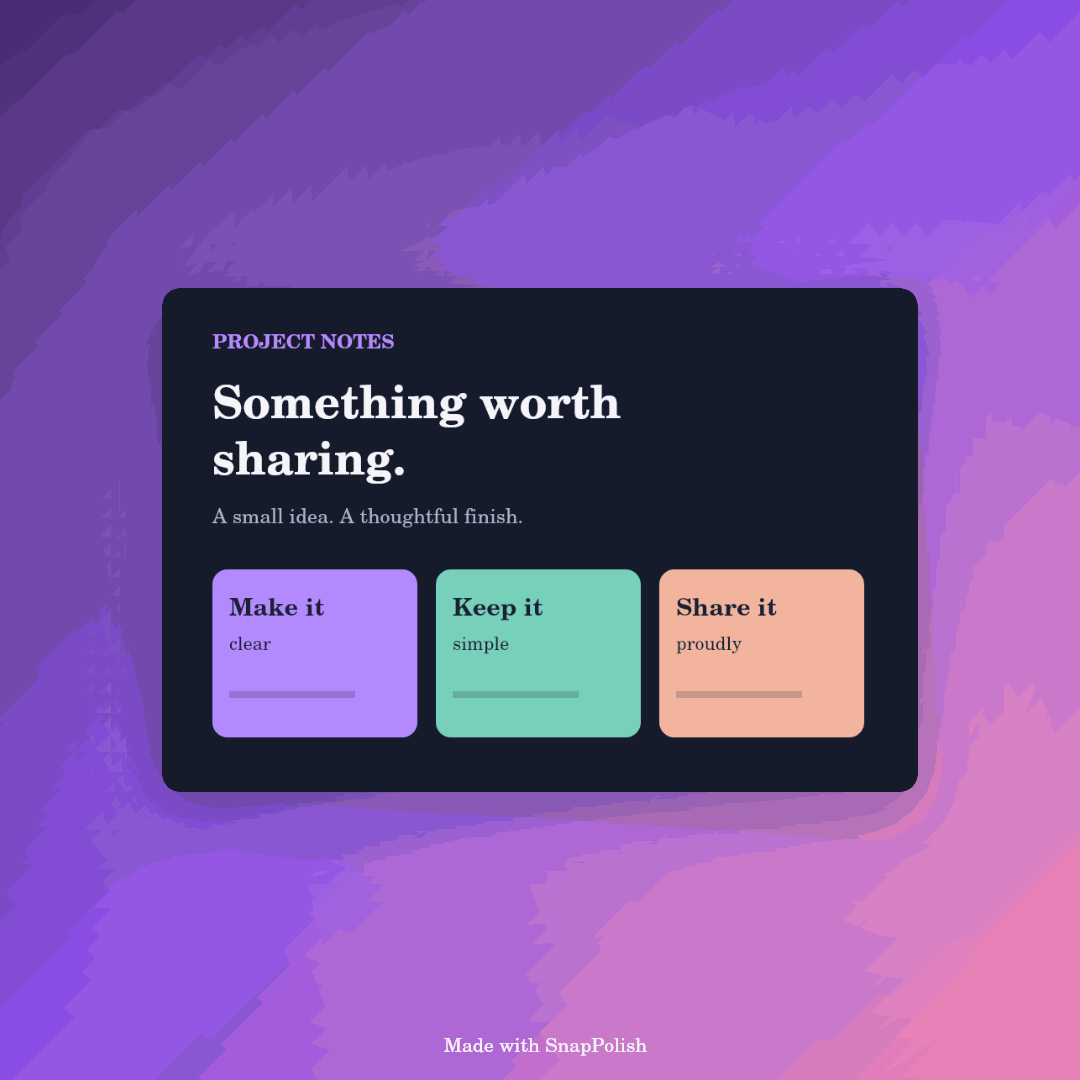
This example uses a square canvas, Aurora, 15% padding and radius 22. All optional correction filters are off.
Match the frame to the content
For an image with lots of text, use a restrained theme so the background does not compete with the content. For a bright product card, a darker background can help its edges stand out. Check the preview at a small size: if the source text is too small, reduce padding or choose a canvas closer to the source shape.
Adding a frame is different from removing a background
This tool adds a canvas around your image. It does not cut a person or object out of a photo and does not remove an existing background inside the original image.
Preserve your original colors
Turn off Auto-enhance, Gentle noise smoothing and Detail contrast. Exporting still resizes the composition as needed, but no optional correction filter is applied.
Next, learn about rounded corners or choosing a canvas size.
Style an image